
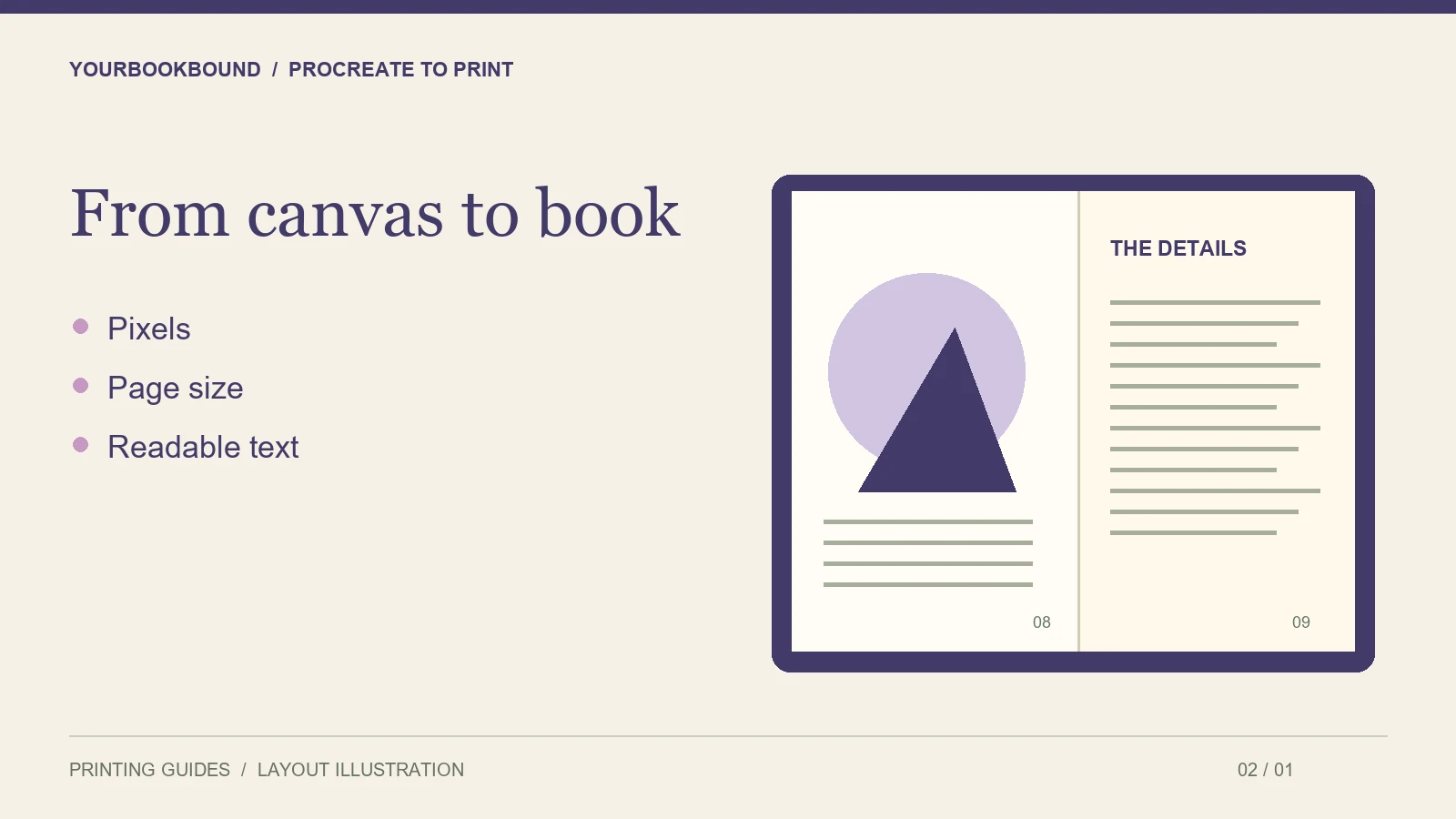
To turn Procreate illustrations into a printed book, check the artwork at the intended page size, export clean image files, and assemble the pages in reading order. A collection of Procreate canvases is source artwork; it is not automatically a finished book interior or a correctly sized hardcover cover.
Begin with the physical page
Before exporting every illustration, tell the printer your preferred book size and whether artwork should reach the page edge. A picture surrounded by a white border has different layout needs from a full-bleed illustration. Use the printer’s confirmed dimensions instead of borrowing another provider’s template.
If an illustration already exists, inspect what it can comfortably fill. A square drawing may work well with a border on a portrait page. Cropping it to fill that page could remove a character or an important part of the story. Agree on the crop before moving text around it.
Check pixels, not only the DPI label
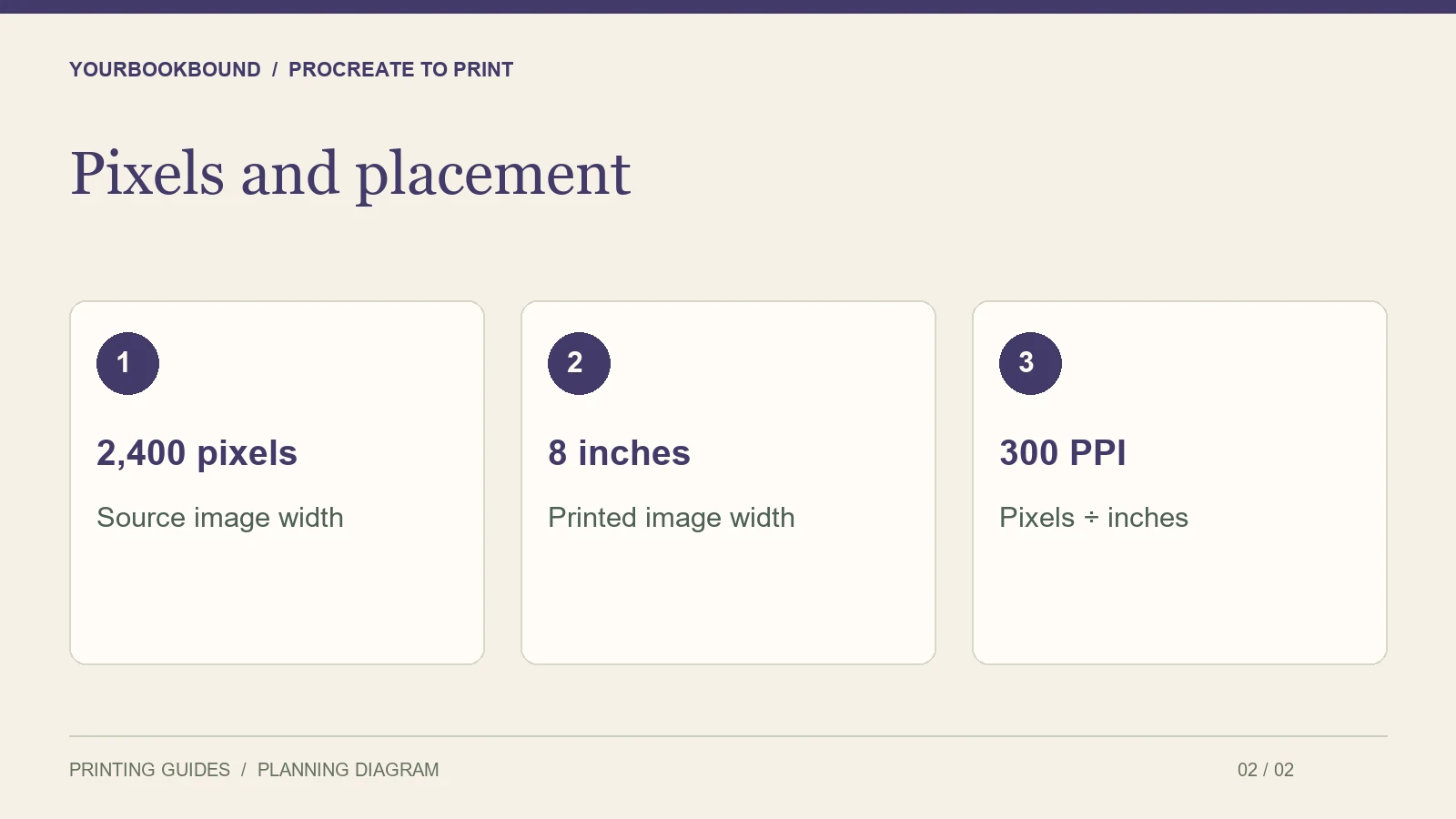
Procreate’s DPI guidance explains the relationship between resolution and print size. For a practical calculation, divide the pixel width by the printed width in inches: a 2,400-pixel image placed eight inches wide has an effective resolution of 300 pixels per inch. Changing a resolution label alone does not recover missing detail.
Look closely at fine outlines, lettering and textured brushes. For an image that is too small, the sensible options may be a smaller placement, a different crop or revisiting the original artwork. Ask for a file review before enlarging everything and assuming the export solved the problem.
Separate artwork from page layout
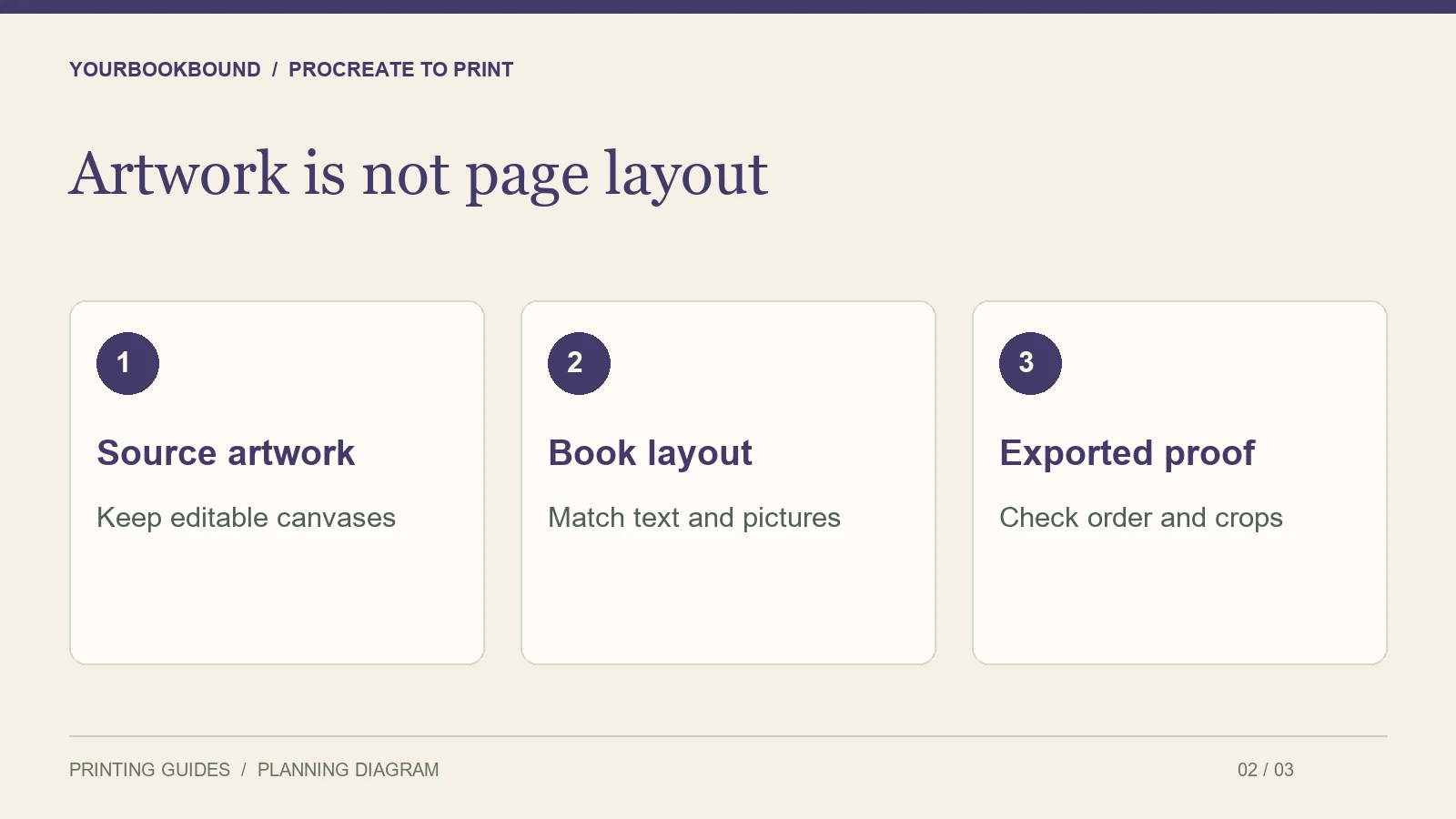
Keep an editable copy of the original project. For handoff, export the artwork format requested by the printer and supply the story text separately when layout changes may be needed. That allows a caption to move without repainting the picture.
Procreate supports several export formats; its Share handbook describes image and layer-sharing options. Be careful to distinguish sharing an image from exporting layers as pages. Open the exported file and verify its contents rather than assuming a PDF contains your intended book sequence.
Make a small handoff package
- One clearly named file for each illustration.
- The complete story text with illustration references.
- A page-order list and notes for any intentional blank pages.
- Preferred size and a note about borders or edge-to-edge artwork.
- Cover artwork, if available, kept separate from the interior.
For example, a filename such as 07-fox-at-window can match a note beside the relevant paragraph. The numbering is an organizational aid, not an instruction to impose printer spreads. See the single pages or spreads guide before assembling a PDF.
Review the book, not just the drawings
In the digital proof, read the story from beginning to end. Check whether text covers important details, faces sit too close to the binding, and repeated characters keep their intended colors. A bright iPad screen cannot establish an exact printed color match. Use the printer’s color instructions; do not convert profiles repeatedly without a reason.
Which export problem should you solve first?
Choose one difficult illustration as your export test: small lettering, textured shadows and an important detail near the edge. Save an untouched original, export the test file, and inspect that exported file before repeating the settings across the project.
| What you see | What to check | Useful next step |
|---|---|---|
| Soft lines at final size | Original pixels and placement size | Use a smaller placement or revisit the artwork. |
| Sharp artwork, tiny words | Physical size of the lettering | Enlarge the text or change the layout. |
| A character disappears at the edge | Crop, trim and binding position | Move the character inside the agreed safe area. |
A 2,400-pixel-wide drawing at six inches gives 400 pixels per inch; the same drawing at ten inches gives 240. This calculation describes the available pixels, not a promise that every brush texture or printing process needs the same threshold. Include the planned placement size when asking for a review.
Procreate’s official export instructions explain saving a PDF through Files. A successful export still needs a page-order check. Keep the original canvases so a requested correction does not depend on editing a flattened PDF.
Can YourBookBound create missing illustrations?
This service prepares customer-supplied text and images for printing. Complete any missing artwork before handoff; original illustration is not assumed to be included.
What should I send first?
Send representative artwork, the completed text, intended size and approximate page count for a free file check. The review can identify layout and file issues before you export the entire project again.