
To format a book in Microsoft Word for printing, set the intended page size first, use consistent styles, control page and section breaks, and inspect the exported PDF. Do not begin by manually rearranging pages into folded sheets unless your printer specifically asks for that format.
Confirm the page size before polishing
A manuscript prepared on a standard office page may change substantially when moved to a smaller book size. Line lengths, image placement and page count can all change. Confirm the intended trim size and the printer’s requirements before refining every chapter opening.
Word’s available controls differ between desktop, Mac and web versions. Use the page-size and margin tools supported by your version, and ask for help if a required setting is unavailable. Do not force an approximate size simply because it appears in the first menu.
Use inside and outside margins deliberately
Facing pages need space near the binding. Microsoft documents mirror margins for arranging inside and outside margins on facing pages. Its web version preserves existing mirror-margin settings but does not provide the same creation controls as desktop Word.
Use dimensions confirmed for your book rather than copying a margin number from an unrelated template. If you add a gutter setting as well, check how it affects the total inside space. The right layout depends on the book and binding, not only on the fact that the file was created in Word.
Replace manual formatting with styles
Apply a consistent style to body text, chapter titles and any subheadings. That makes changes more predictable than selecting individual paragraphs throughout the manuscript. Check paragraph spacing and indents together: a book can look uneven when both extra blank lines and paragraph spacing are used accidentally.
Keep deliberate exceptions, such as a letter within a story, identifiable. Make a short note explaining the treatment you want. If you are supplying DOCX for layout assistance, those notes are more useful than attempting to position every line with spaces.
Control chapter starts and section changes
Use intentional page breaks for new chapter openings rather than repeatedly pressing Enter. Use section breaks only when a change in numbering, headers or layout requires them, and inspect their effect in the exported file. Unexpected blank pages are a reason to examine the structure, not to delete random paragraphs until the preview looks shorter.
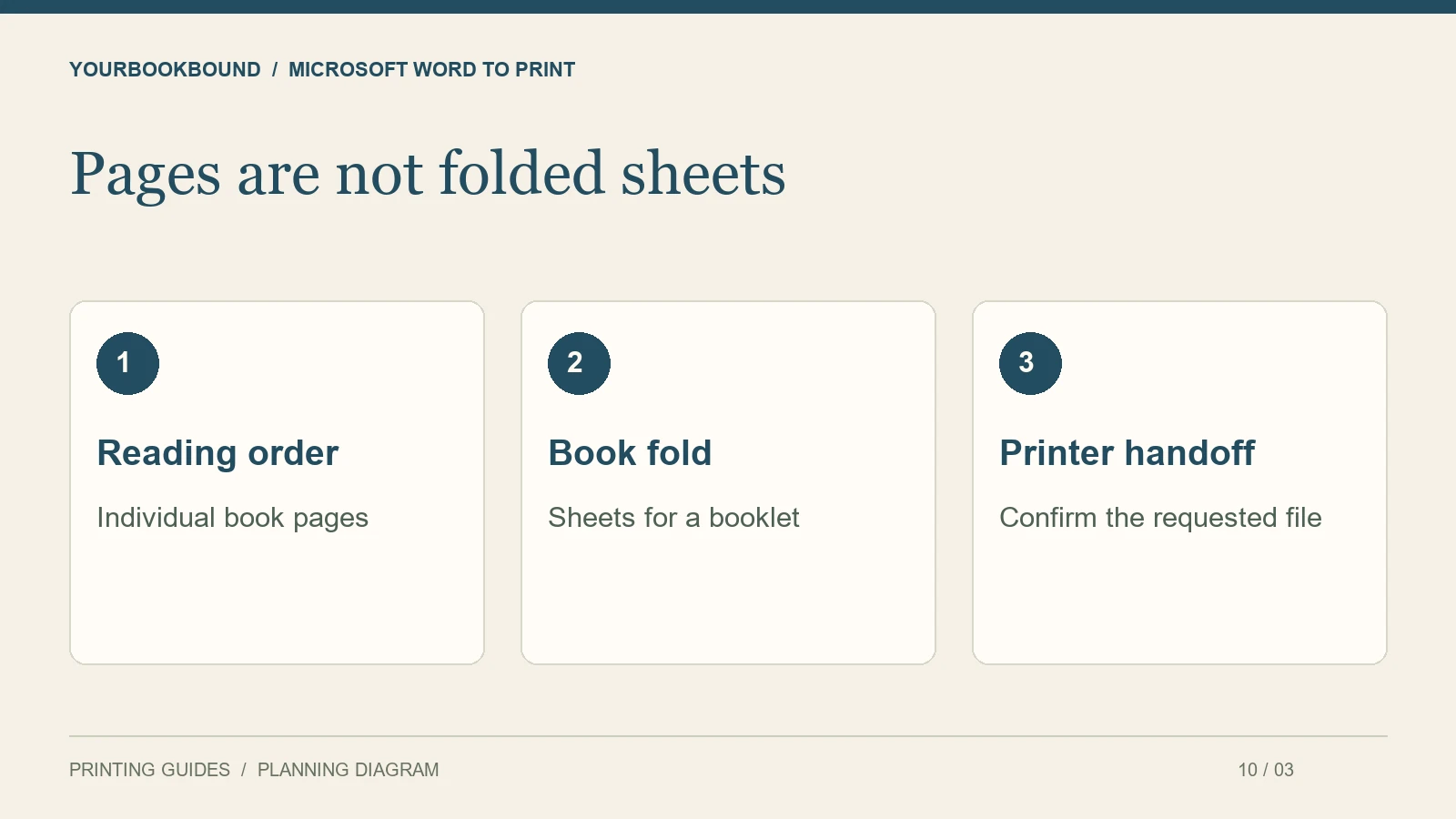
If you want chapters to begin on right-hand pages, tell the printer and note any deliberate blanks. The single-page PDF guide explains the distinction between normal reading order and imposed printing sheets.
Inspect the exported PDF separately
Keep the editable Word document, then export a PDF using settings suitable for the intended print workflow. Open the result in a PDF viewer. Check the actual page dimensions, page count, chapter starts, images, symbols and headers. A file that looks correct in Word may still need attention after export.
Compare the first and last lines of each chapter with the manuscript. Check that review comments or tracked revisions have not appeared in the version intended for printing. Read small captions at final size instead of relying on a highly zoomed screen.
Which Word settings should you change in order?
In desktop Word for Windows, begin with a saved working copy. The exact labels can vary by version, but this sequence keeps early page changes from undoing later polishing:
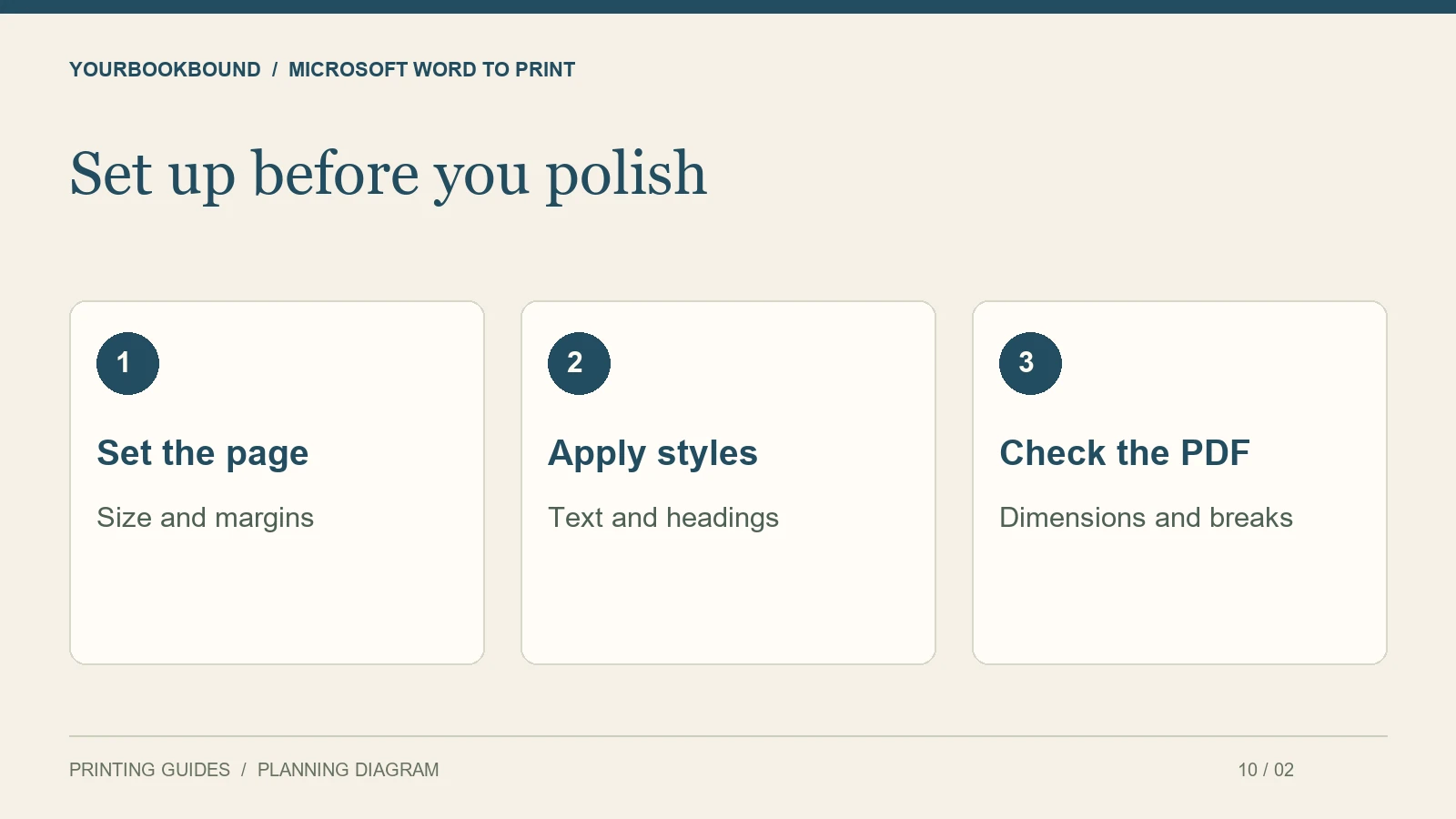
- Set the page: open Layout > Size and choose the confirmed size, using More Paper Sizes if needed.
- Set facing-page margins: use Layout > Margins > Custom Margins, then select Mirror margins under Multiple pages and enter the agreed inside and outside dimensions.
- Apply styles: use Home > Styles for chapter headings and body text. Modify the style instead of individually changing every paragraph.
- Check breaks: turn on formatting marks and inspect the break before each chapter. Remove accidental empty paragraphs without removing intended spacing from your styles.
- Export and reopen: save a PDF and compare it with the editable document, including page dimensions and the end of every chapter.
Microsoft’s mirror-margin instructions document the facing-page controls. For Mac or Word for the web, follow the instructions for that version rather than assuming every Windows menu is available.
Should you use Word’s Book fold option?
Microsoft’s Book fold instructions describe arranging sheets for folded booklets. That is a different output from a normal book interior supplied as individual pages in reading order. For YourBookBound, confirm the requested page setup and avoid imposing folded sheets yourself unless specifically asked.
If an unwanted blank page appears, check for an odd-page or even-page section break before changing the text. If numbering restarts unexpectedly, inspect that section’s numbering settings. Fixing the structural cause is more dependable than shrinking the font until the symptom disappears.
Should I send Word or PDF?
Send the file that best represents your completed content, and explain whether you need layout help. Our PDF versus DOCX guide covers this handoff decision. Retain both versions so corrections can be made without rebuilding the document.
Must the document already be print-ready?
No. YourBookBound reviews completed text and images and supports preparation for printing. Request a free file check with your intended size and approximate length before spending more time fighting the formatting.